
Single Sign-On (SSO)
This page explains how sign-in works in the vviinn Panel: enterprise SSO for companies, the personal SSO options, and how new users are matched to a company and get permissions.
Personal SSO
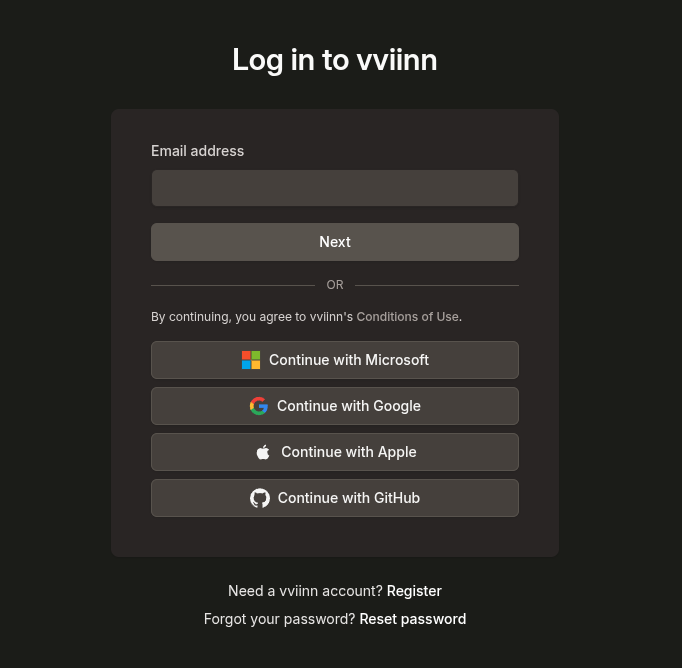
Section titled “Personal SSO”The vviinn Panel login supports social sign-in with Google, Microsoft, GitHub, and Apple in addition to the usual email and password. Choose a personal SSO provider on the login screen, authenticate with that provider, and you are taken straight into the Panel. Personal SSO accounts behave exactly like normal email/password accounts, including everything described below for company matching and registration.
Enterprise SSO
Section titled “Enterprise SSO”Companies can use their own identity provider (IdP) to sign in to the vviinn Panel through Enterprise SSO. vviinn supports the SAML 2.0 and OIDC (OpenID Connect) protocols, built on top of the Google Identity Platform (Firebase Authentication).
Setting It Up
Section titled “Setting It Up”To enable Enterprise SSO, select Single Sign-On as the authentication option for your company in the vviinn Panel—this works for companies that already exist as well as new ones. Then send your company’s SSO configuration to support@vviinn.com, and vviinn adds it to its Firebase app that manages Panel users. Once that’s done, your users can log in with their SSO directly from the vviinn Panel.
For a SAML setup, we need:
- Your IdP’s SAML metadata (or the SSO URL and entity ID)
- The X.509 signing certificate
- The attribute mapping for the email address (and optionally name attributes)
For an OIDC setup, we need:
- The issuer URL and authorization/token endpoints, or the provider’s well-known discovery URL
- The client ID (and client secret, if required)
- The scopes used and the email claim
Once the configuration has been added to vviinn’s Firebase app, users of your company can sign in to the Panel with their SSO.
Signing In with Enterprise SSO
Section titled “Signing In with Enterprise SSO”Once Enterprise SSO is set up, no separate login screen is needed. A user simply signs in through the usual vviinn login method (email and password, personal SSO, or the enterprise login screen):
- The user’s email domain is recognized as belonging to a company with Enterprise SSO.
- The user is automatically redirected to the company’s identity provider.
- After authenticating there, the user is redirected via Firebase back to the vviinn Panel, already signed in.
Company Email Domains
Section titled “Company Email Domains”A company in vviinn can be linked to one or more email domains, for example bestsellers.example. These domains are added to the company by vviinn—contact support@vviinn.com to have your company’s domains configured. Once a domain belongs to a company, any user who registers on the vviinn Panel with an email whose domain matches it is automatically assigned to that company—regardless of whether they register with SSO or a normal email and password.
Automatic Viewer Assignment
Section titled “Automatic Viewer Assignment”Users matched to a company via email domain are granted the Viewer role first. A viewer:
- Sees the company name and the Panel navigation
- Cannot change or do anything else
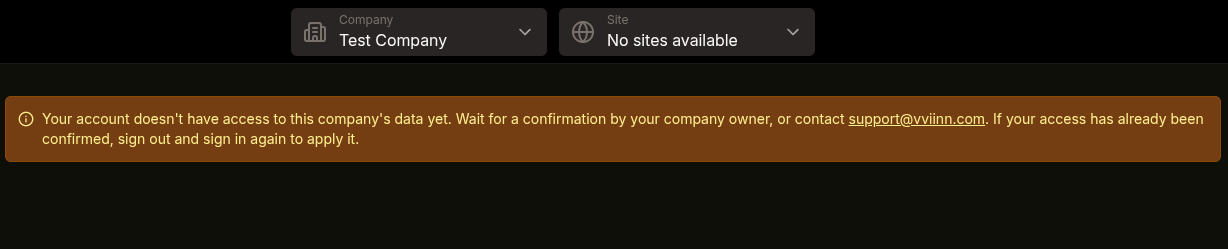
When someone registers for the company this way, the company owner is notified by email that a new user registered for the company. The owner can then, in the Panel:
- Promote the user to Editor, granting full editing rights, or
- Reject the user, removing them from the company
Inviting Team Members
Section titled “Inviting Team Members”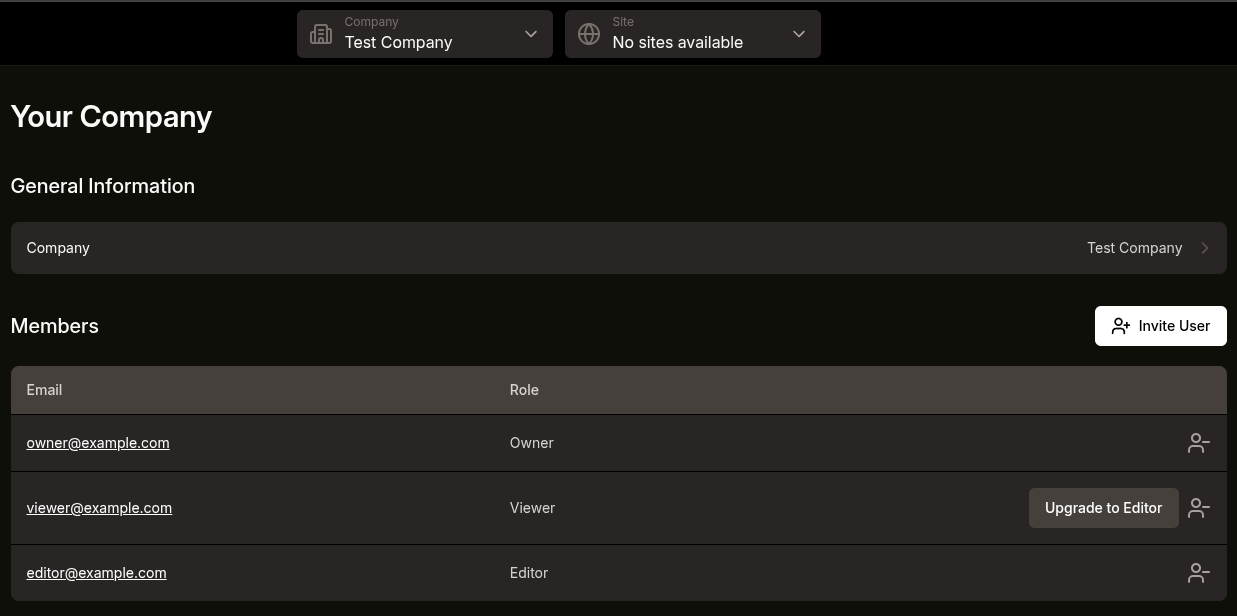
Company owners can invite people directly from the Panel using the Invite button in the company’s user management. The invited person receives an email with a link to join the company:
- If they are a normal (email and password) user, the link lets them set up a password and log in.
- If they are an Enterprise SSO user, the link takes them straight to a login through their company’s SSO.
The invite function automatically creates the user account in Firebase, so no separate registration is needed. Invited users are automatically granted the Editor role with full access to the company’s sites and campaigns.
Summary
Section titled “Summary”| Scenario | What happens |
|---|---|
| Login with a company email domain (Enterprise SSO configured) | Automatic redirect to the company IdP, then back to the Panel via Firebase |
| Registration with a matching email domain | Automatic assignment to the company with the Viewer role |
| Viewer registration | Company owner is notified by email and can promote to Editor or reject |
| Owner invite via the Invite button | Email with a join link; Firebase user is created automatically; Editor role is granted |
| Personal SSO (Google, Microsoft, GitHub, Apple) | Same behaviour as a normal email/password account in every respect |
If you are unsure whether Enterprise SSO is right for your company, or to get your configuration added, contact support@vviinn.com.